
Use the task board
The task board is Sybra’s home. Press ⌘1 from anywhere to jump here.
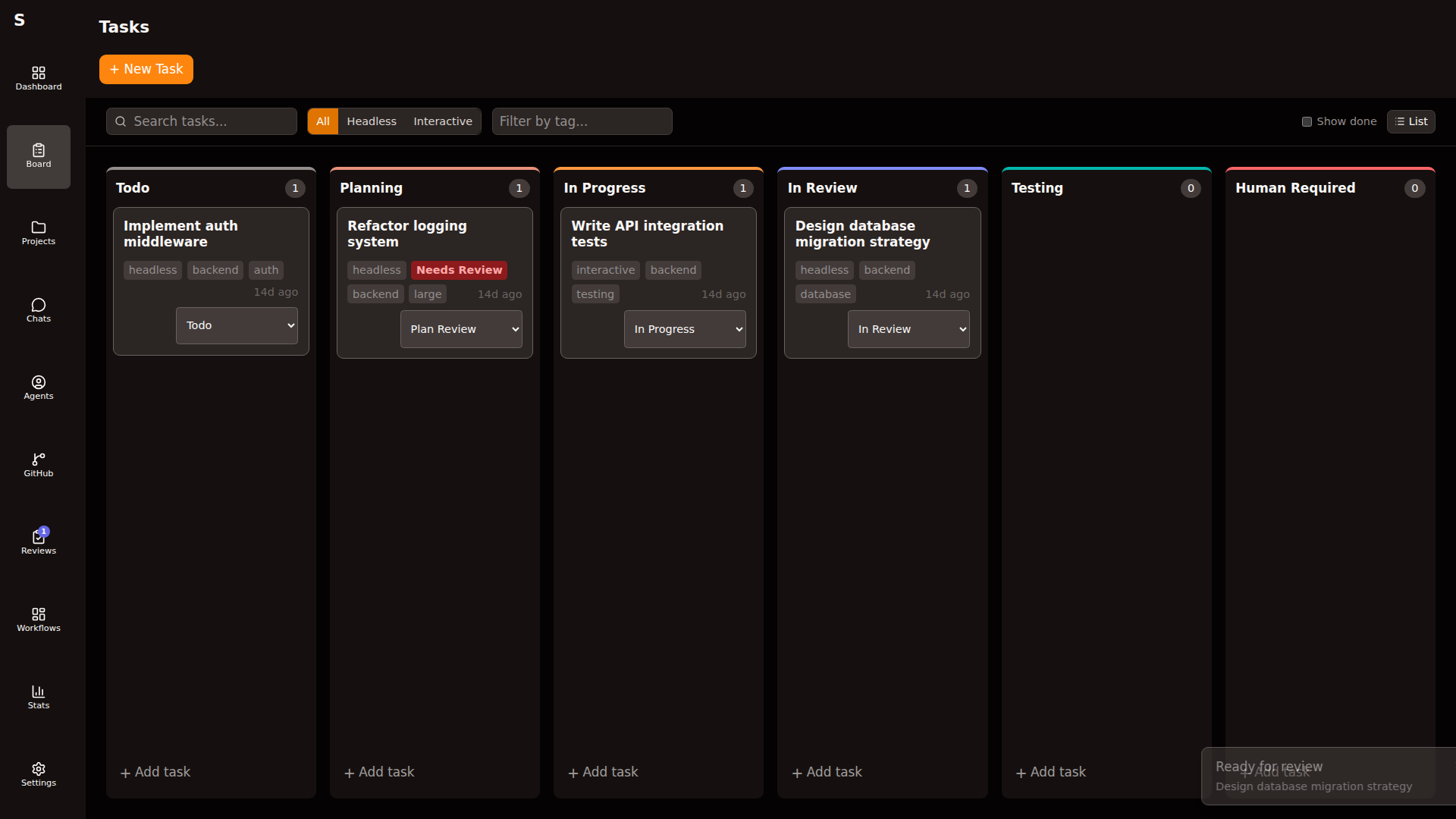
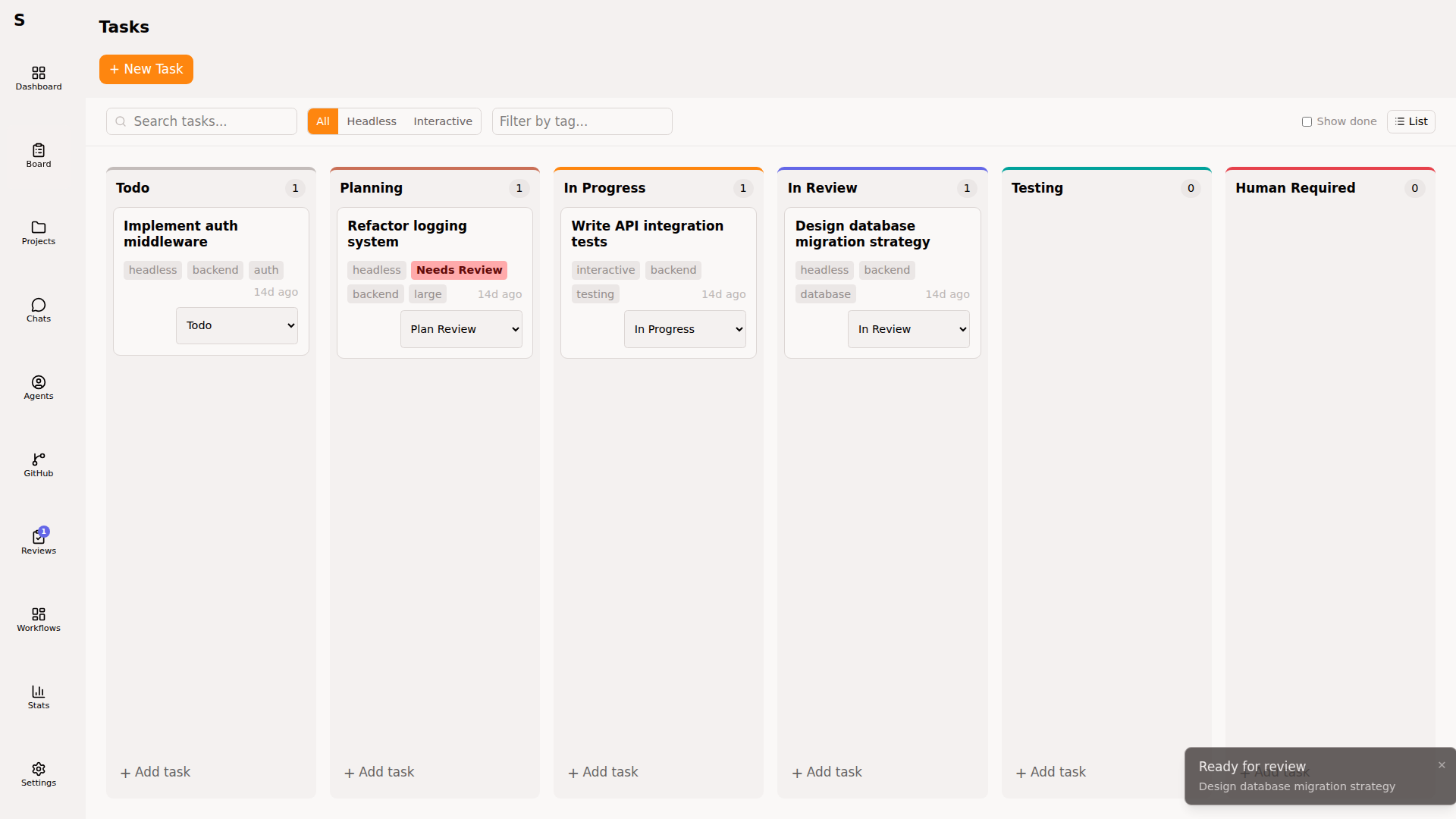
Columns map one-to-one to task statuses (new → todo → planning → plan-review → in-progress → in-review → human-required → done). Each card shows title, tags, project, assigned agent, cost so far.
Create a task
Section titled “Create a task”Three paths:
-
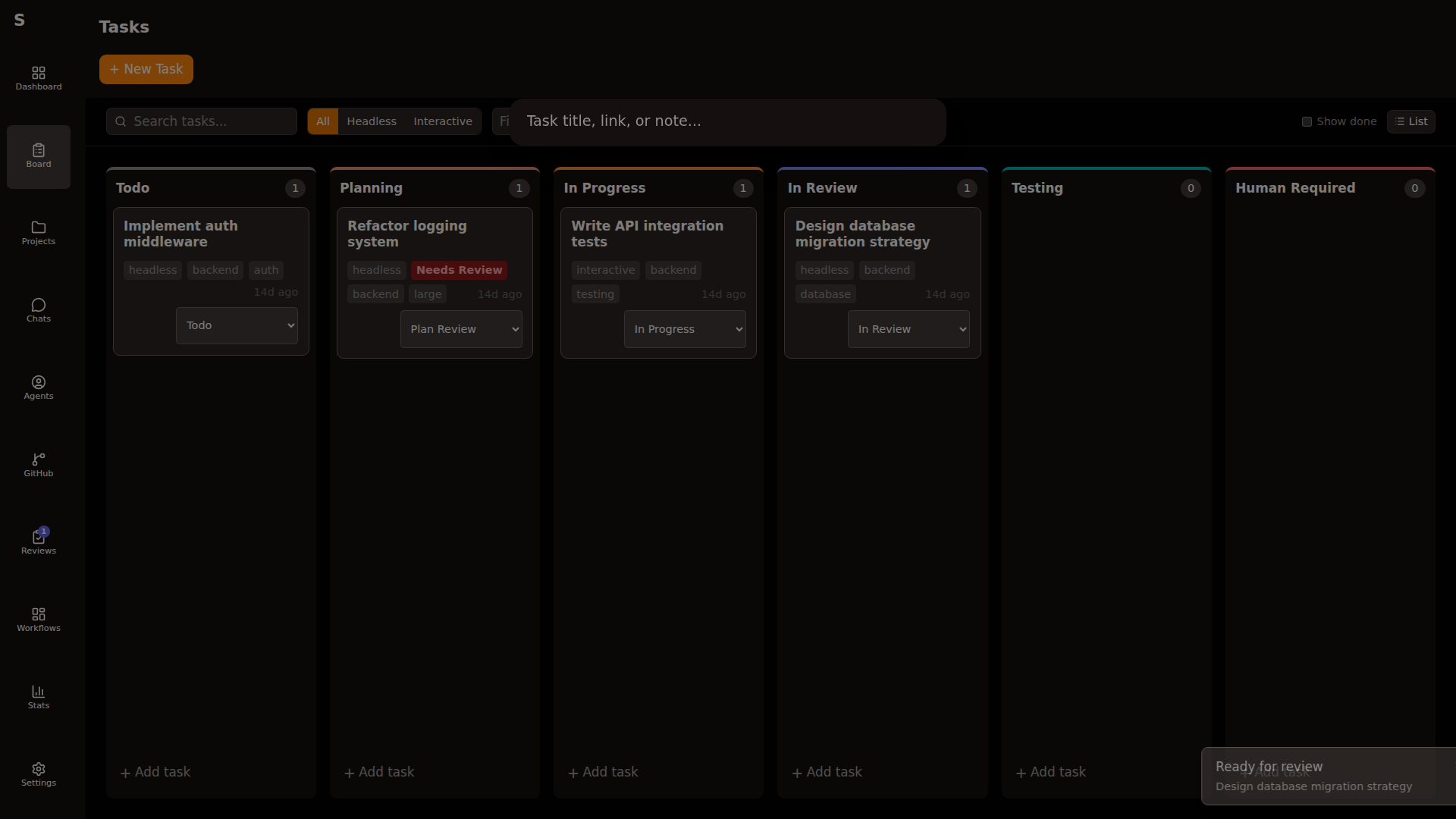
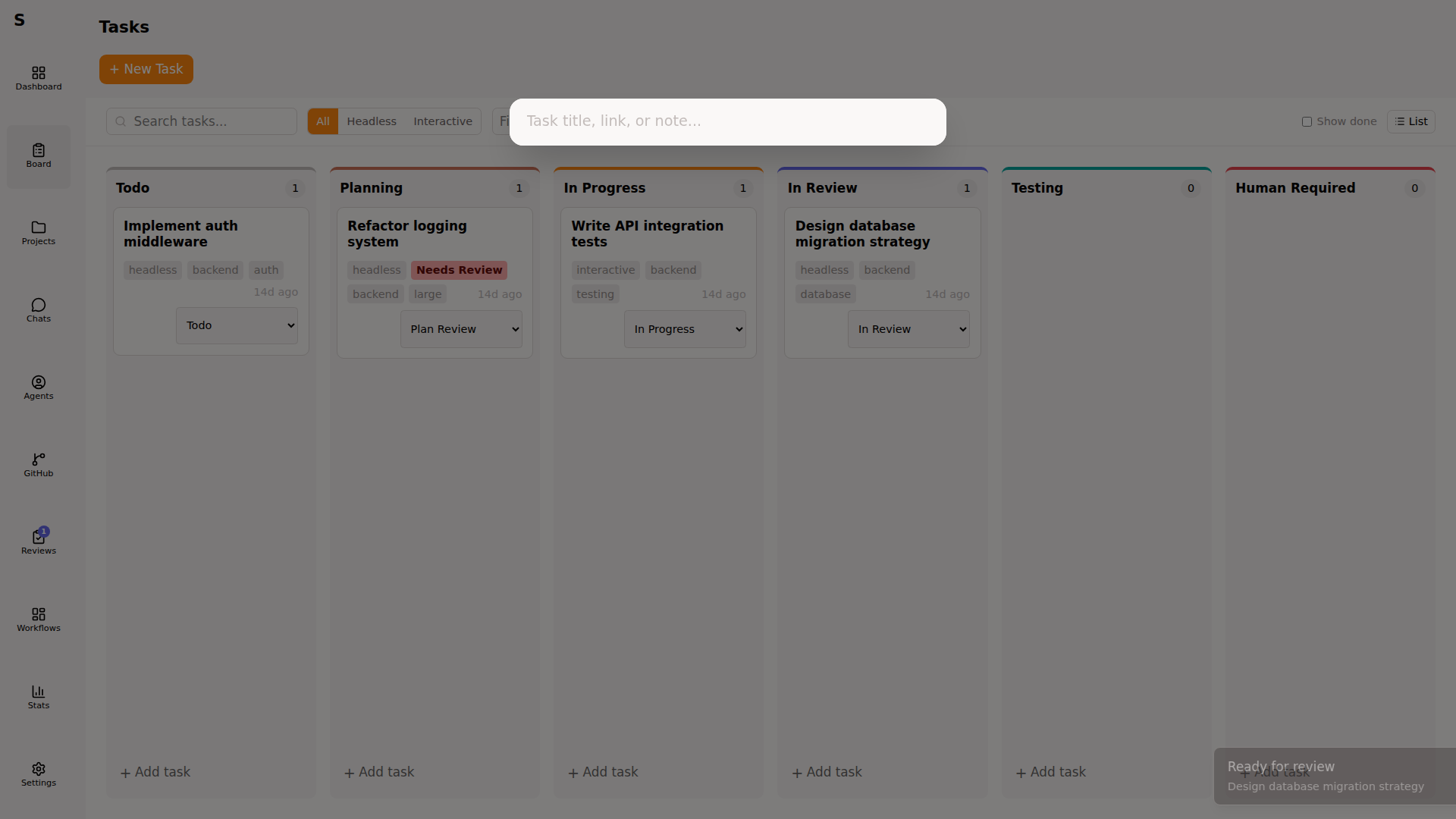
Hotkey — press ⌘N anywhere for Quick Add:
-
Full dialog — click New task on the board:
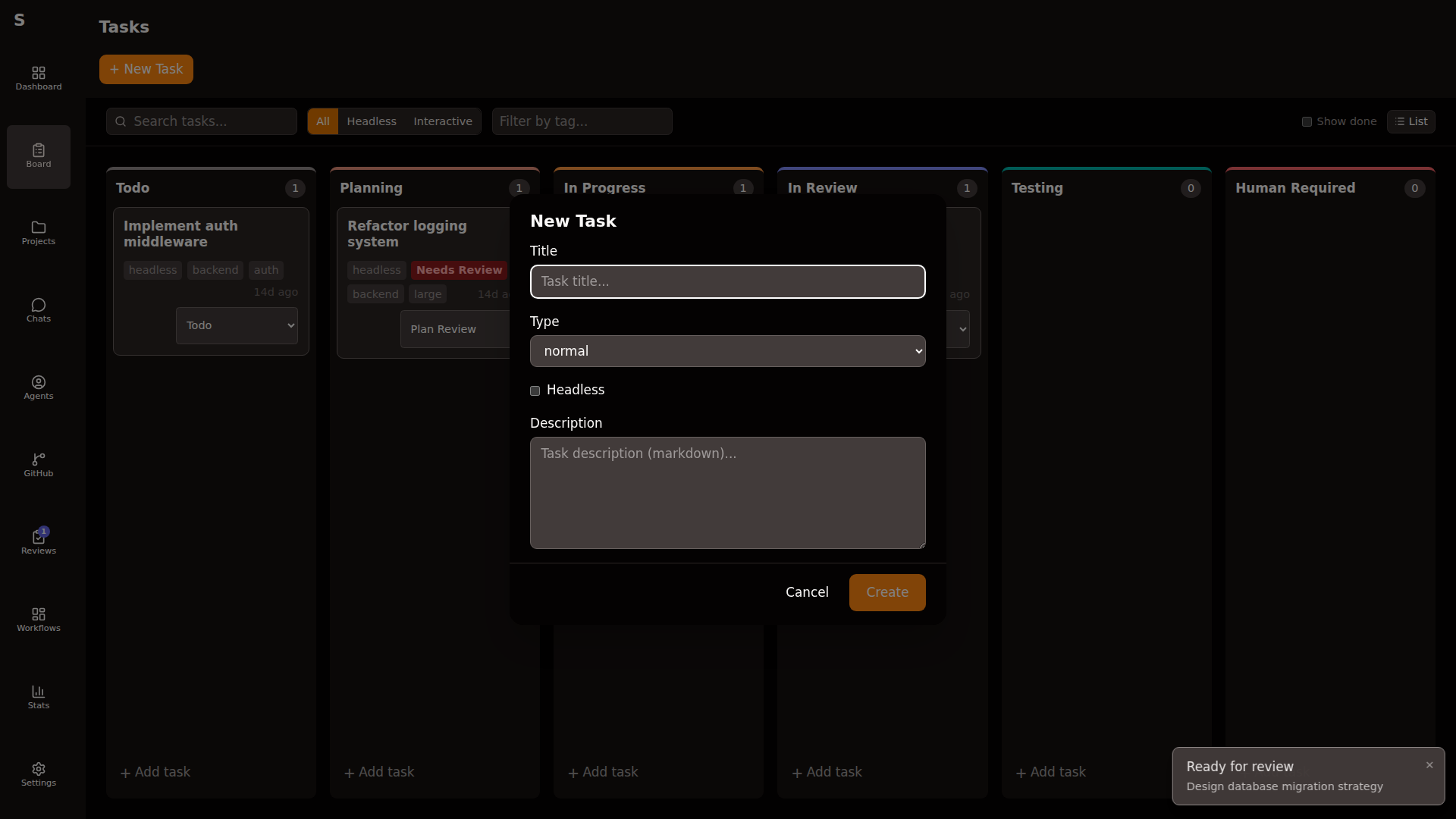
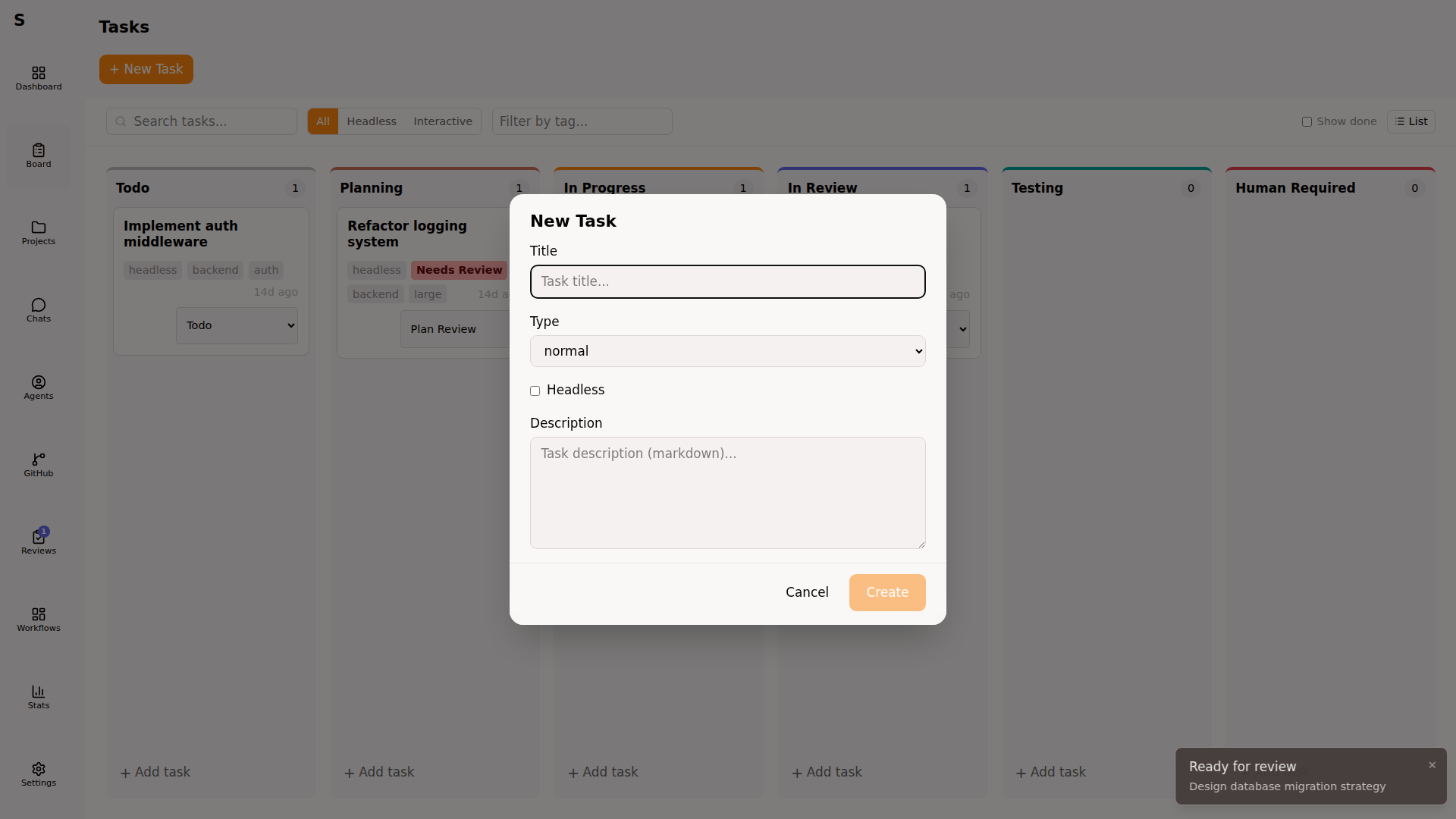
-
CLI —
Terminal window sybra-cli create \--title "Fix auth redirect" \--body "See stack trace in issue #42" \--mode headless \--tags backend,auth \--project Automaat/sybra
Navigate by keyboard
Section titled “Navigate by keyboard”| Key | Action |
|---|---|
J / ↓ | Next card in column |
K / ↑ | Previous card |
H / ← | Column left |
L / → | Column right |
Enter | Open focused card |
Esc | Clear selection / filter |
⌘F | Focus search |
⌘. | Copy task ID |
⇧⌘. | Copy branch name |
Filter
Section titled “Filter”Press / or click the filter icon. The filter panel exposes:
- Search — matches title and body
- Project — dropdown of registered projects
- Tags — type tags into the input; combined with AND
- Agent mode —
headlessorinteractive
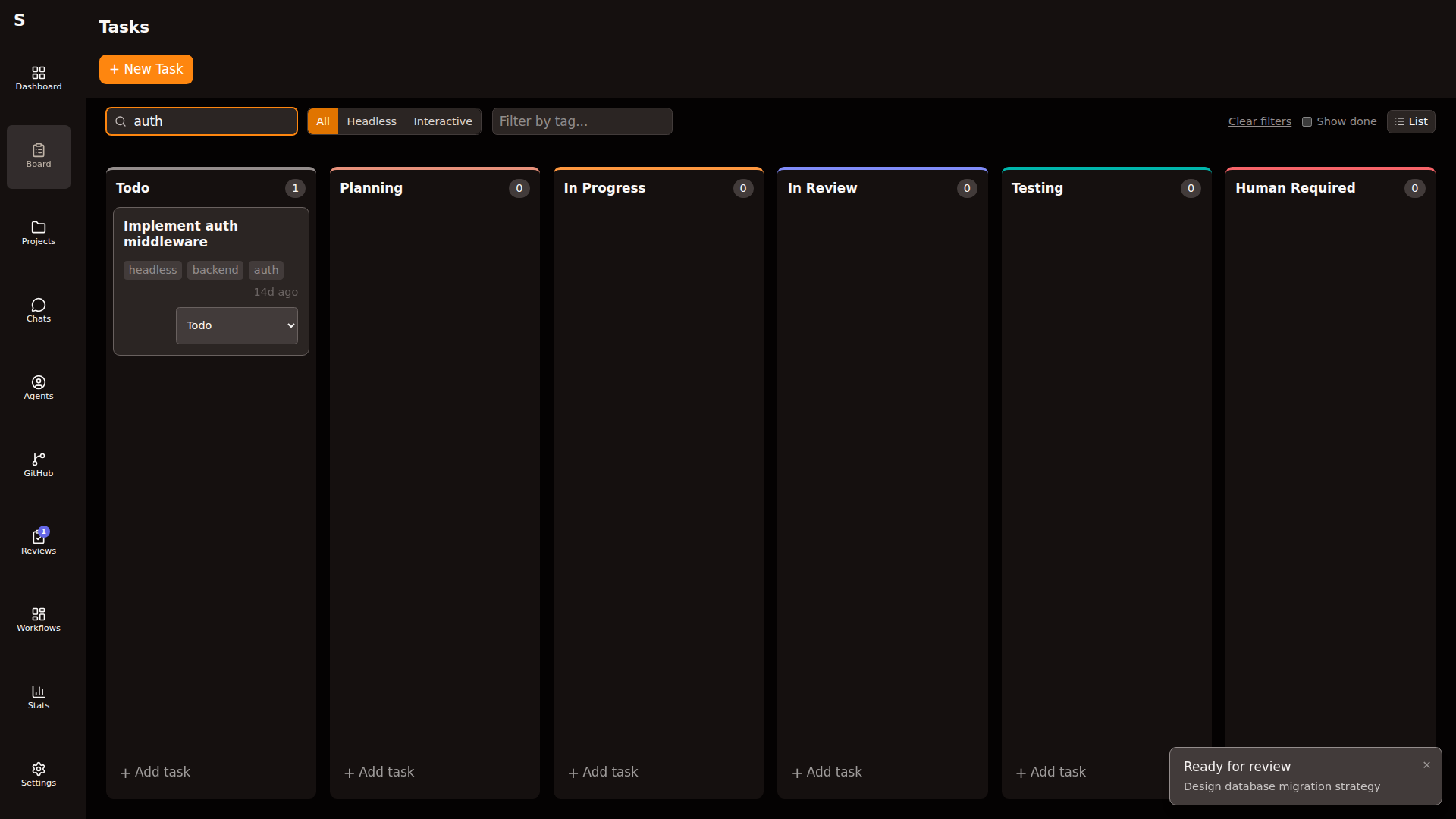
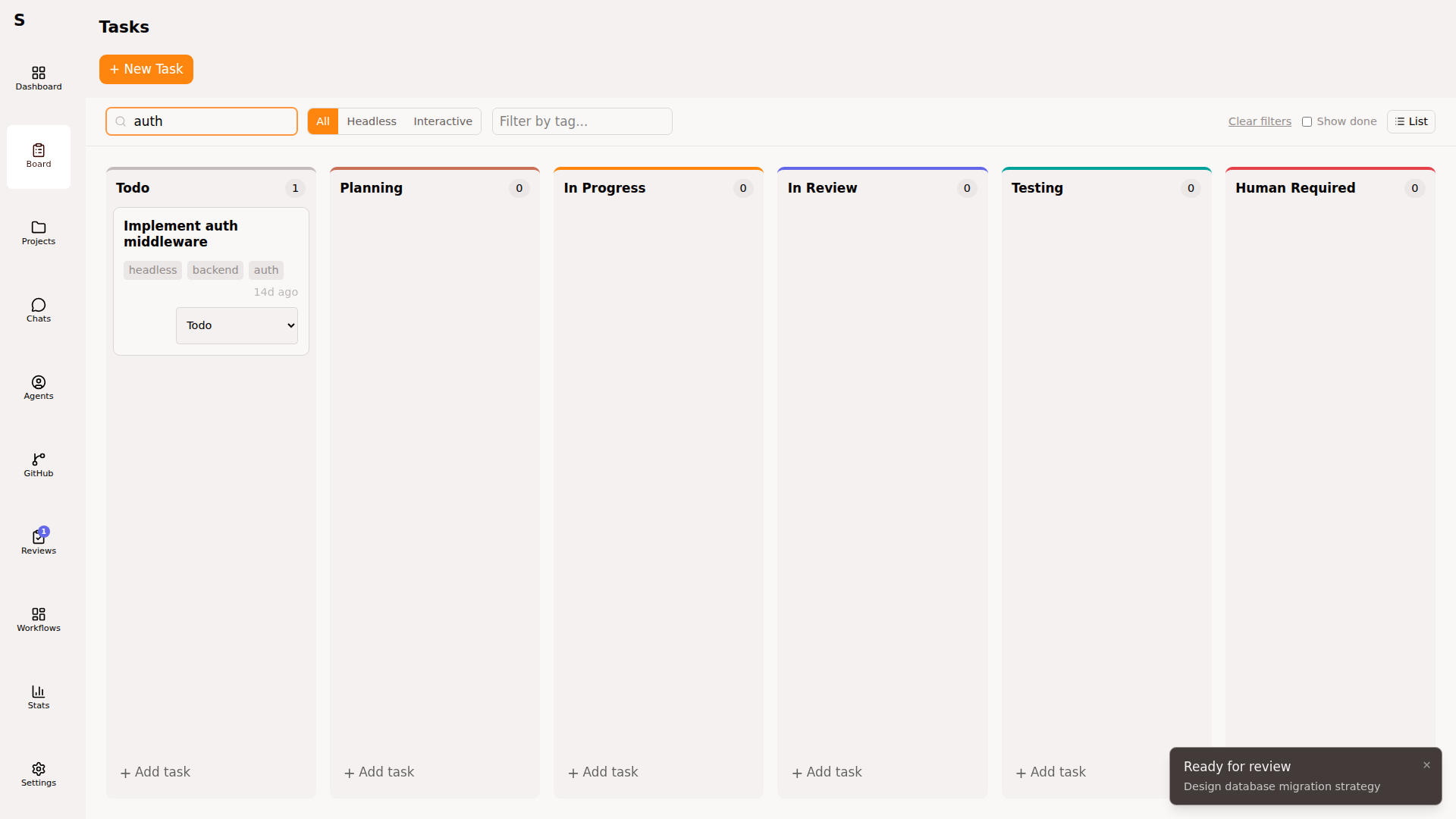
Filter state is not persisted in the URL — reopen the panel to reapply.
Change a task’s status
Section titled “Change a task’s status”- From the card: drag to another column
- From detail view: press S to open the status picker
- From CLI:
sybra-cli update <id> --status in-progress
Transitions trigger task.status_changed workflows. If a workflow owns the task, it may fight your manual status change — mark the workflow step’s human_actions accordingly, or cancel the workflow first.
Edit a task
Section titled “Edit a task”Open the task (click or Enter). You see the detail view:
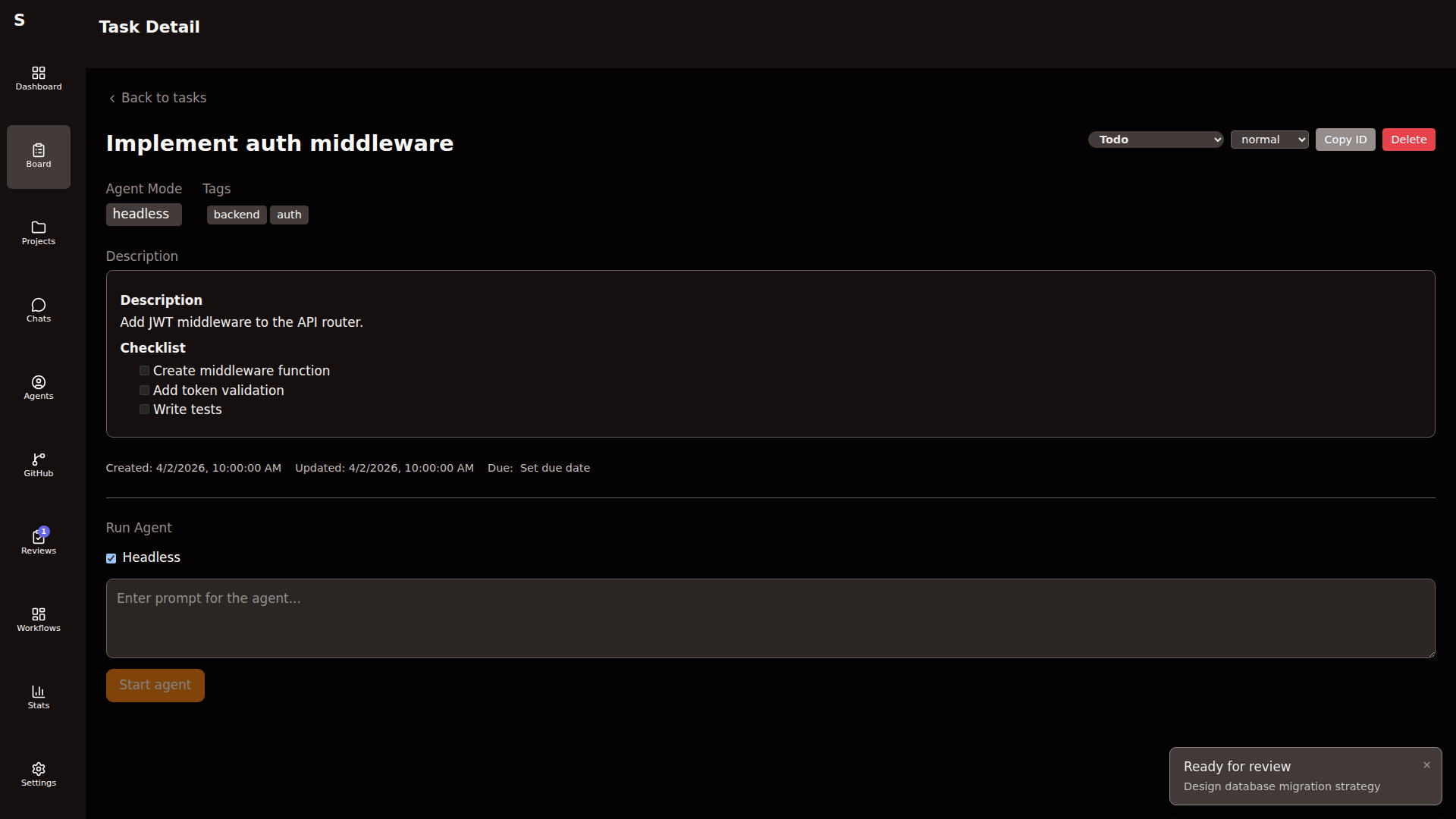
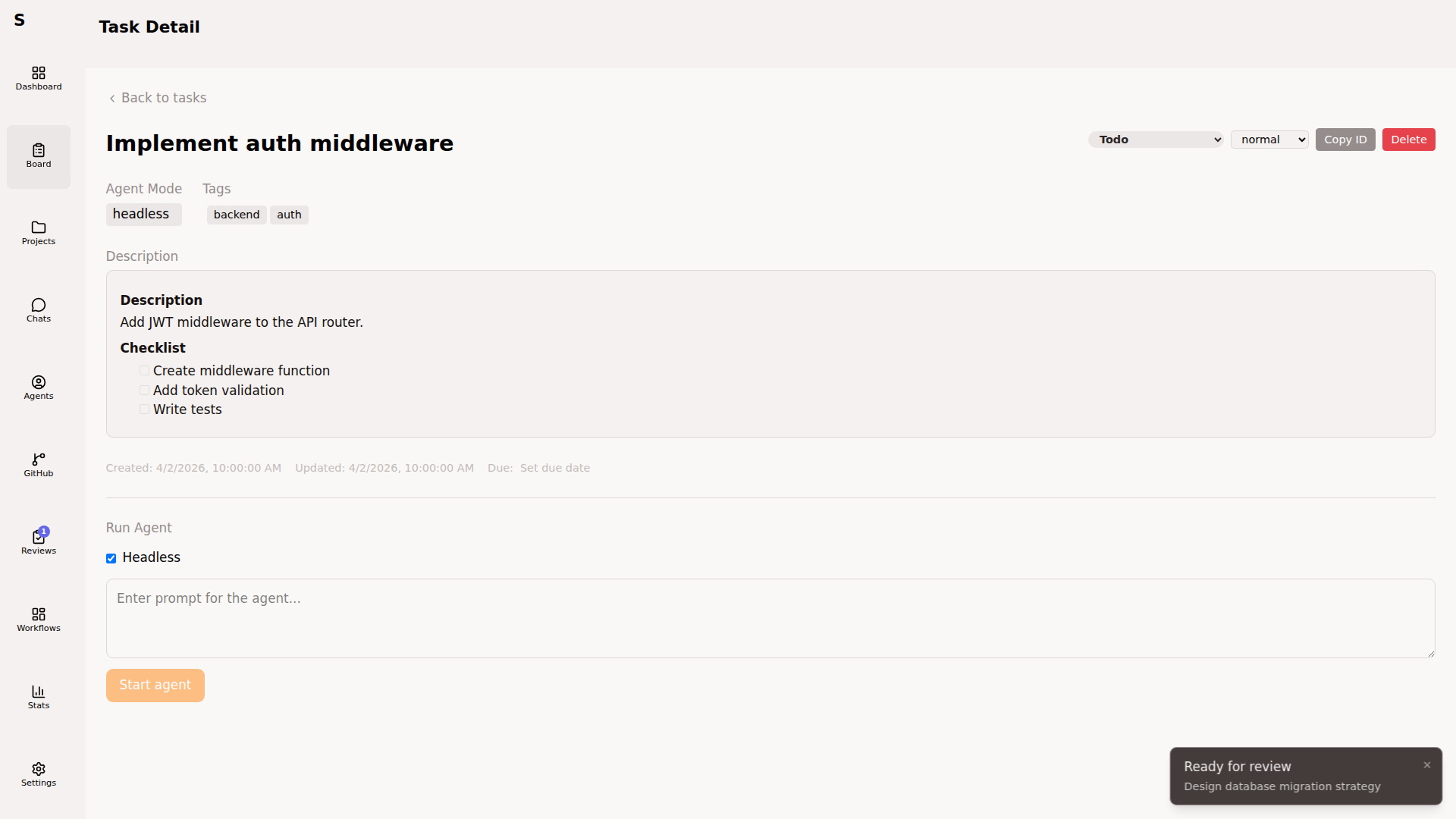
Shortcuts on the detail page:
| Key | Action |
|---|---|
E | Edit title & body |
S | Change status |
D | Delete (with confirm) |
Esc | Back to board |
Markdown edits save on blur. The fsnotify watcher picks up the new frontmatter immediately; no refresh needed.
Dispatch an agent
Section titled “Dispatch an agent”From a task detail:
- Ensure status is
todo - Type a prompt into the agent prompt box — Start agent stays disabled until the prompt is non-empty
- Click Start agent
- Sybra creates a worktree, spawns the agent, and streams events live
Once running, the card shows a live agent indicator. Cost ticks up as tokens flow. Click the card to jump to Agent Detail.
Plan review
Section titled “Plan review”Some workflows (e.g. default-feature on medium+ tasks) insert a plan-review step. The board shows these in the plan-review column.
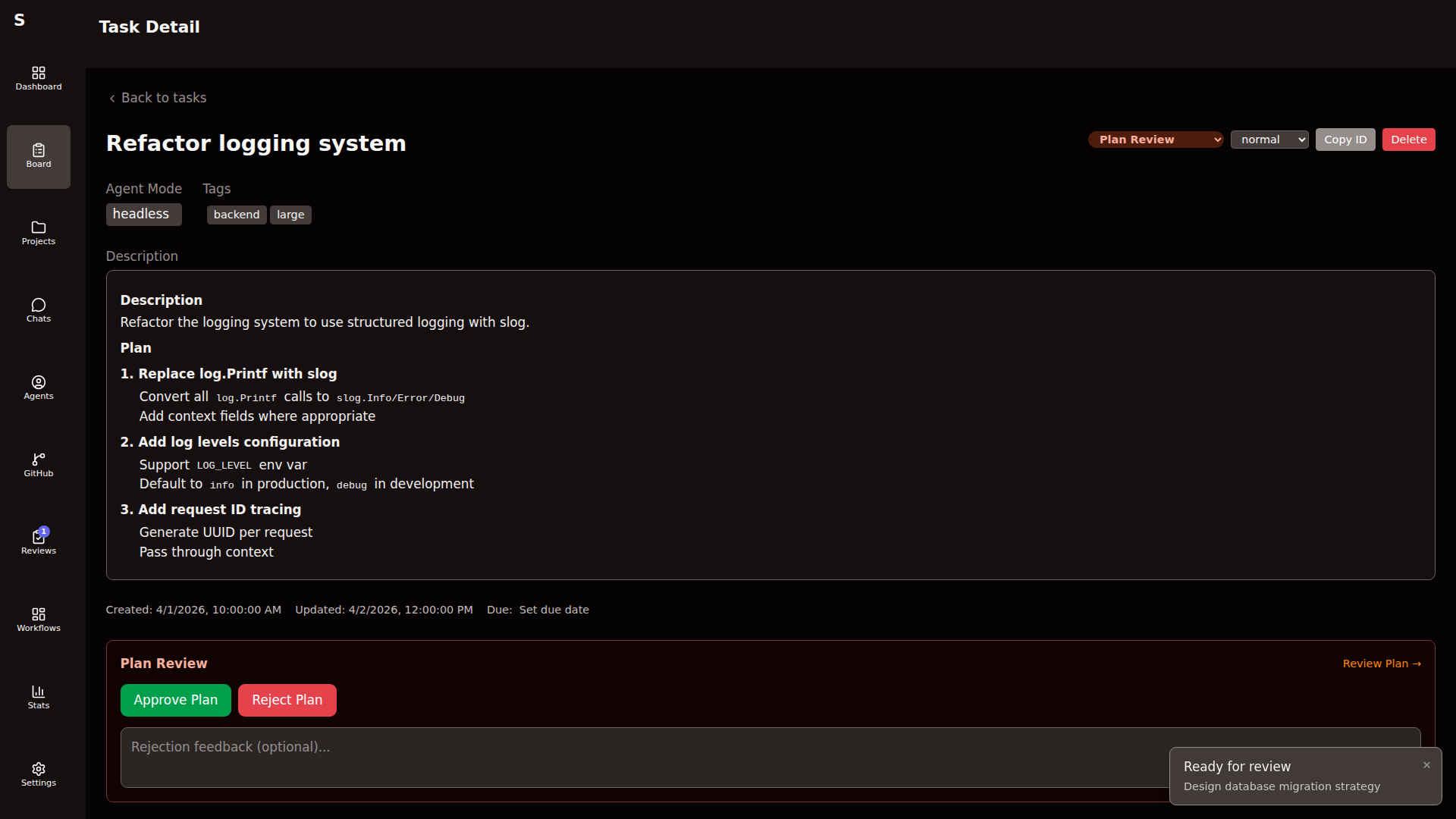
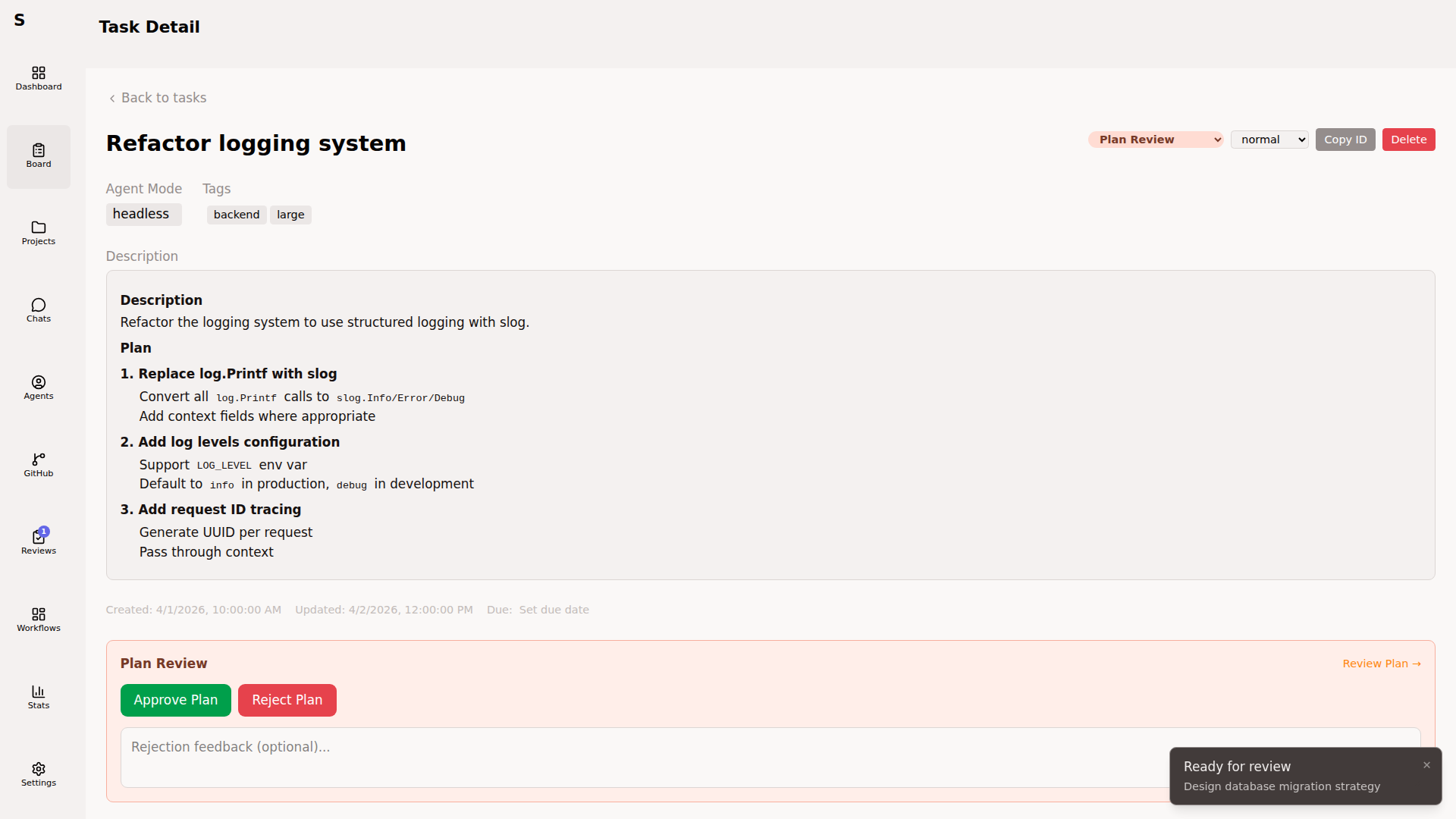
- A — approve the plan (agent resumes into implementation)
- R — reject (agent stops; task returns to
planningwith your feedback) - C — focus the feedback box; type a message, press
⌘Enterto send
Feedback is fed back to the plan agent via claude -p --resume <session_id>. Write it as a new message, not a diff.
Bulk actions
Section titled “Bulk actions”Hold ⇧ while clicking cards to multi-select. Multi-selection shows a batch action bar:
- Change status (of all)
- Add tag
- Assign project
- Delete
Bulk edits preserve individual updated_at timestamps correctly.
The “human-required” column
Section titled “The “human-required” column”A task lands here when:
- An agent hits an escalation (budget, turns, tool denial)
- A workflow’s
wait_humanstep fires - The monitor detects a stall
Clear it by making a decision: change status, send a message to the paused agent, or delete the task.
- Keep
newshort. Triage weekly or let the orchestrator do it. - Treat
human-requiredas your only real inbox. If that column stays empty, the swarm is healthy. - Don’t fight the board. If you’re manually moving cards across columns daily, it means the orchestrator isn’t triaging well — tune the rules in
orchestrator/CLAUDE.mdor the triage workflow.