
Keyboard shortcuts
Sybra is keyboard-first. Press ⌘/ from anywhere to open the shortcut cheat sheet.
Global
Section titled “Global”| Key | Action |
|---|---|
⌘K | Open command palette |
⌘/ | Show shortcut help |
⌘, | Open Settings |
⌘N | Quick Add task |
⌘F | Focus search on the current page |
⌘= | Zoom in |
⌘- | Zoom out |
⌘0 | Reset zoom |
Esc | Close dialog / clear selection |
Navigation
Section titled “Navigation”| Key | Destination |
|---|---|
⌘1 | Dashboard |
⌘2 | Task board |
⌘3 | Projects |
⌘4 | Agents |
⌘5 | GitHub |
⌘6 | Reviews |
⌘7 | Stats |
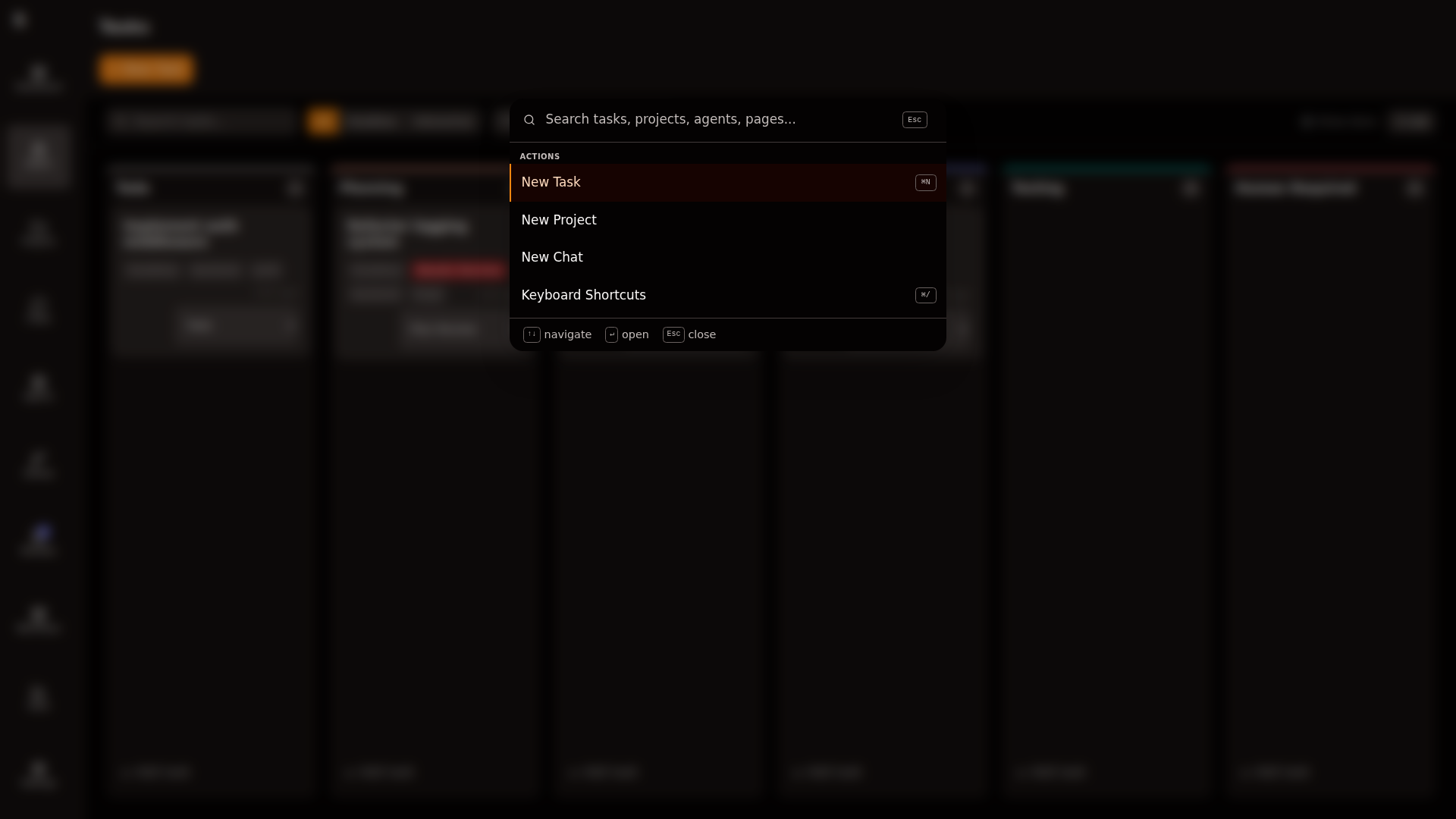
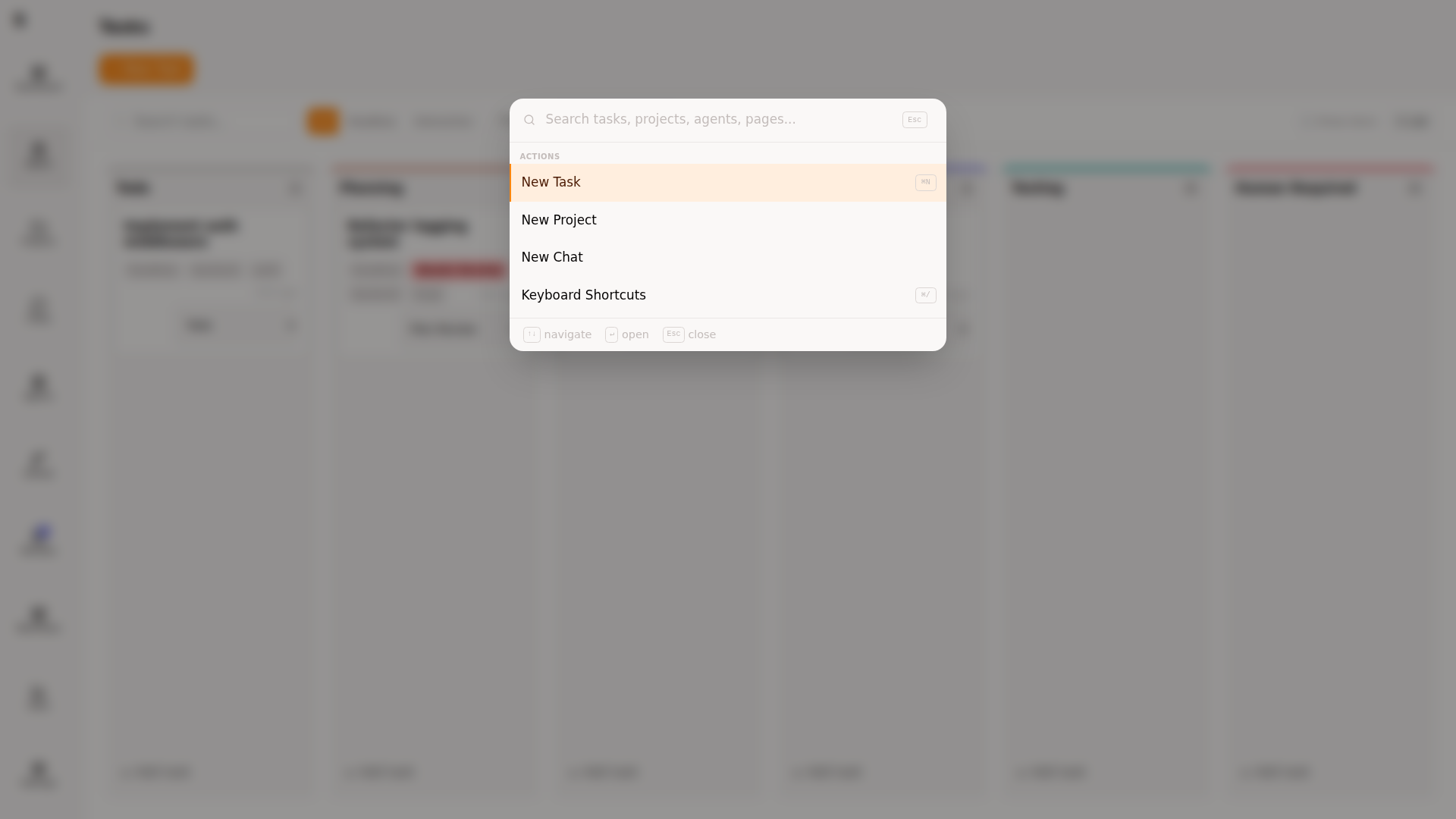
The command palette opens with fuzzy search over pages, tasks, and projects. Arrow keys to navigate, Enter to activate.
Task board
Section titled “Task board”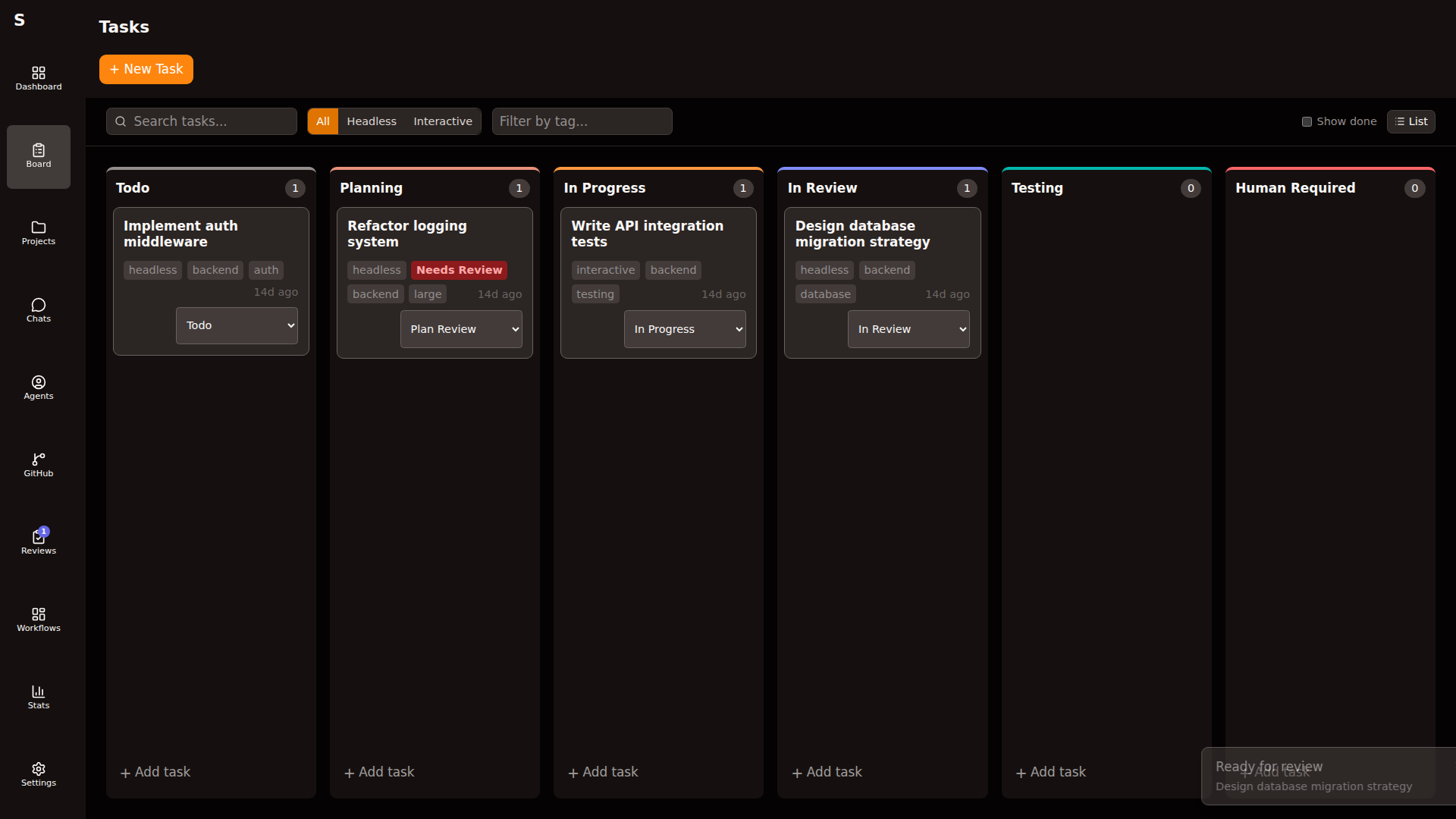
| Key | Action |
|---|---|
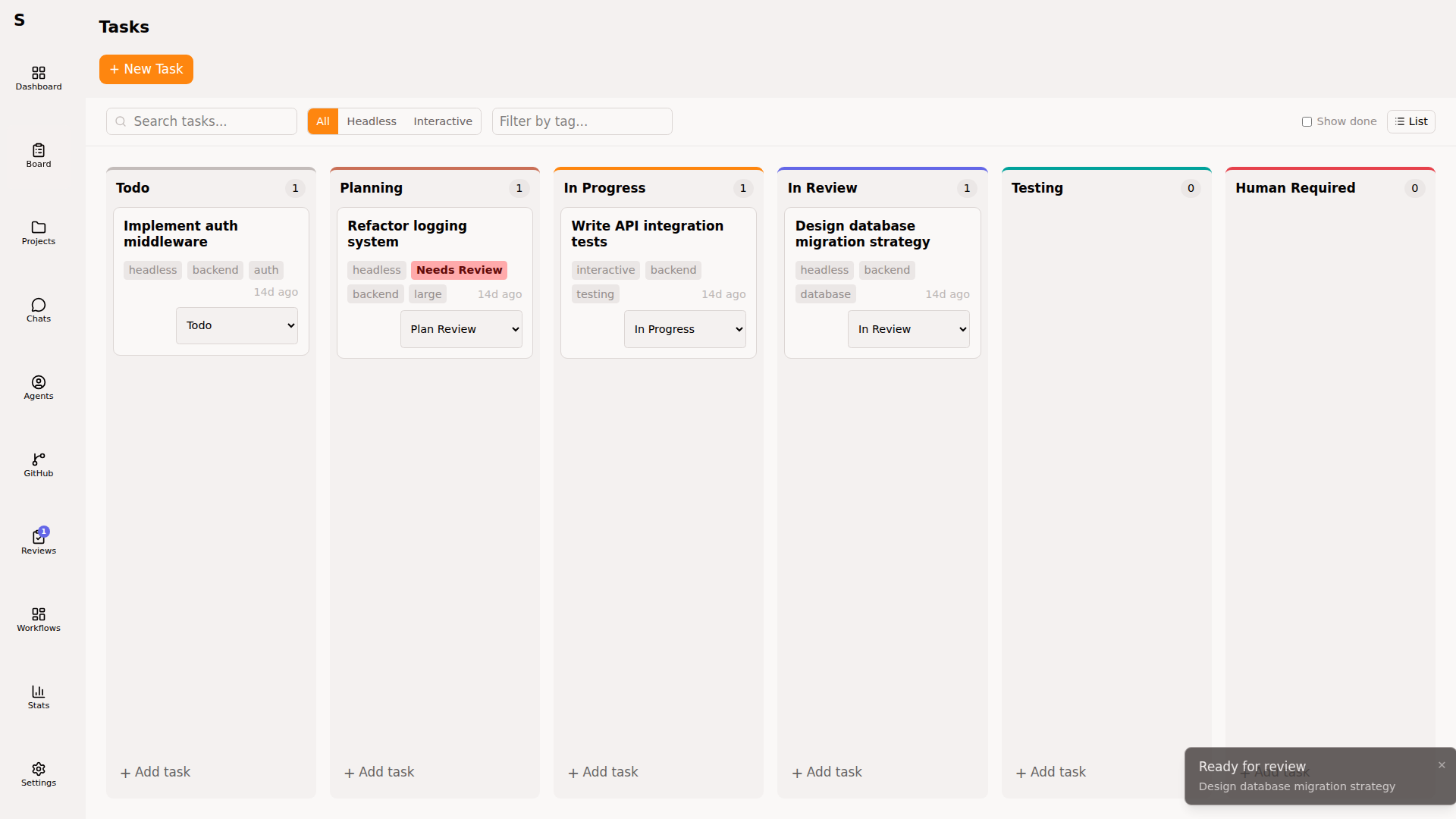
J / ↓ | Next card in column |
K / ↑ | Previous card |
H / ← | Previous column |
L / → | Next column |
Enter | Open focused task |
/ | Focus filter bar |
⌘F | Focus search |
Esc | Clear filter / selection |
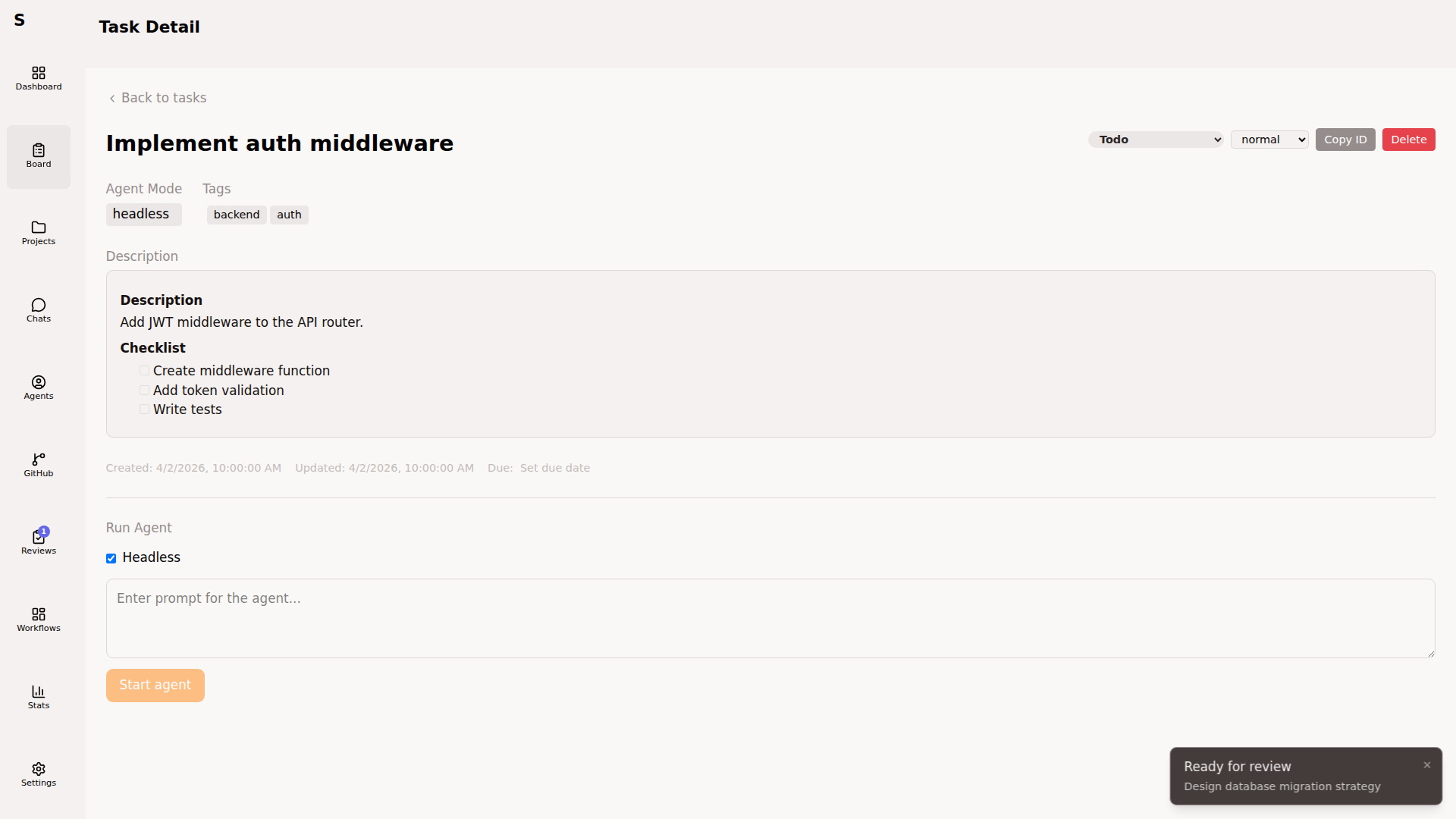
Task detail
Section titled “Task detail”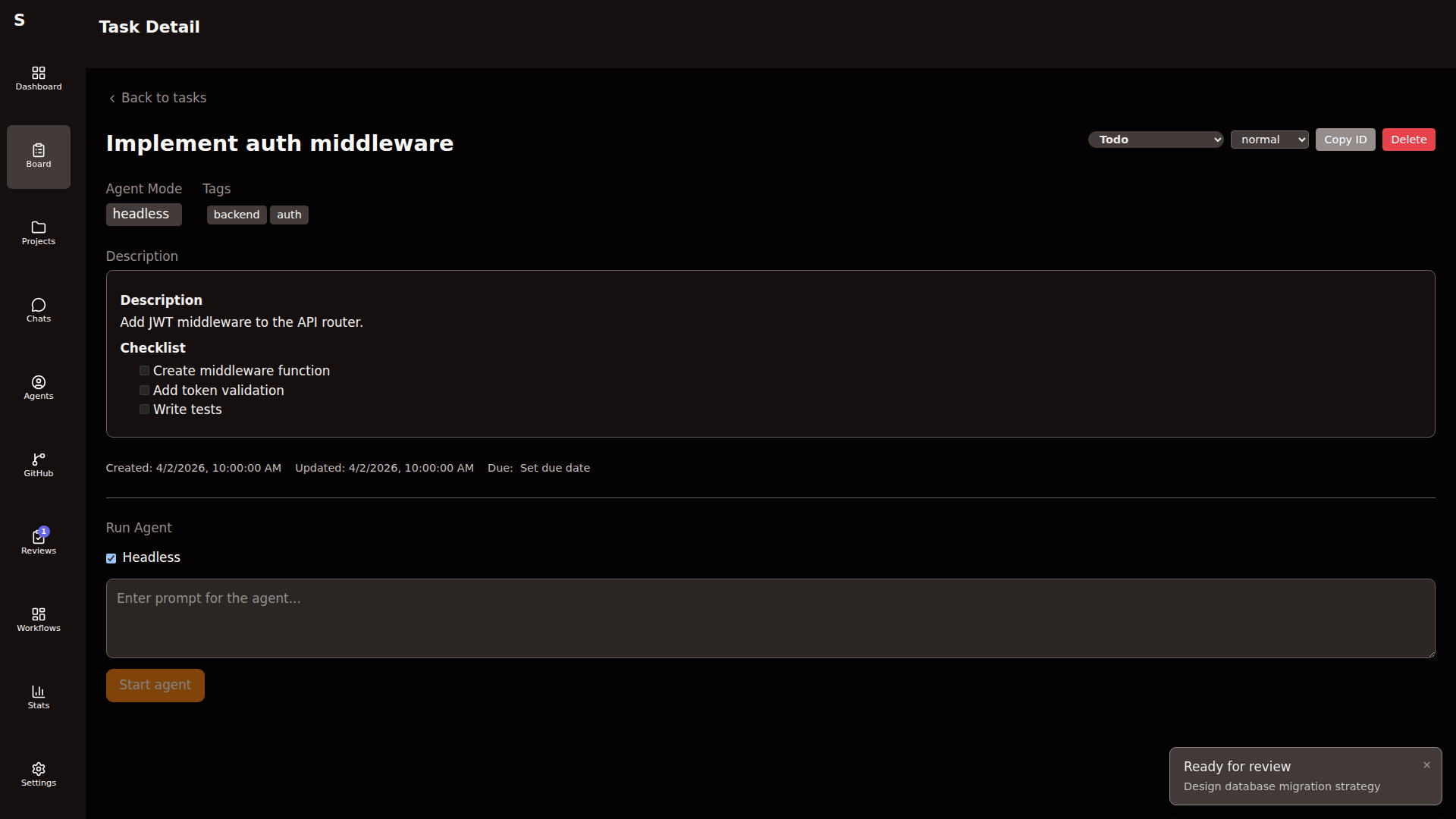
| Key | Action |
|---|---|
E | Edit title & body |
S | Change status |
D | Delete (with confirm) |
⌘. | Copy task ID |
⇧⌘. | Copy branch name |
Esc | Back to board |
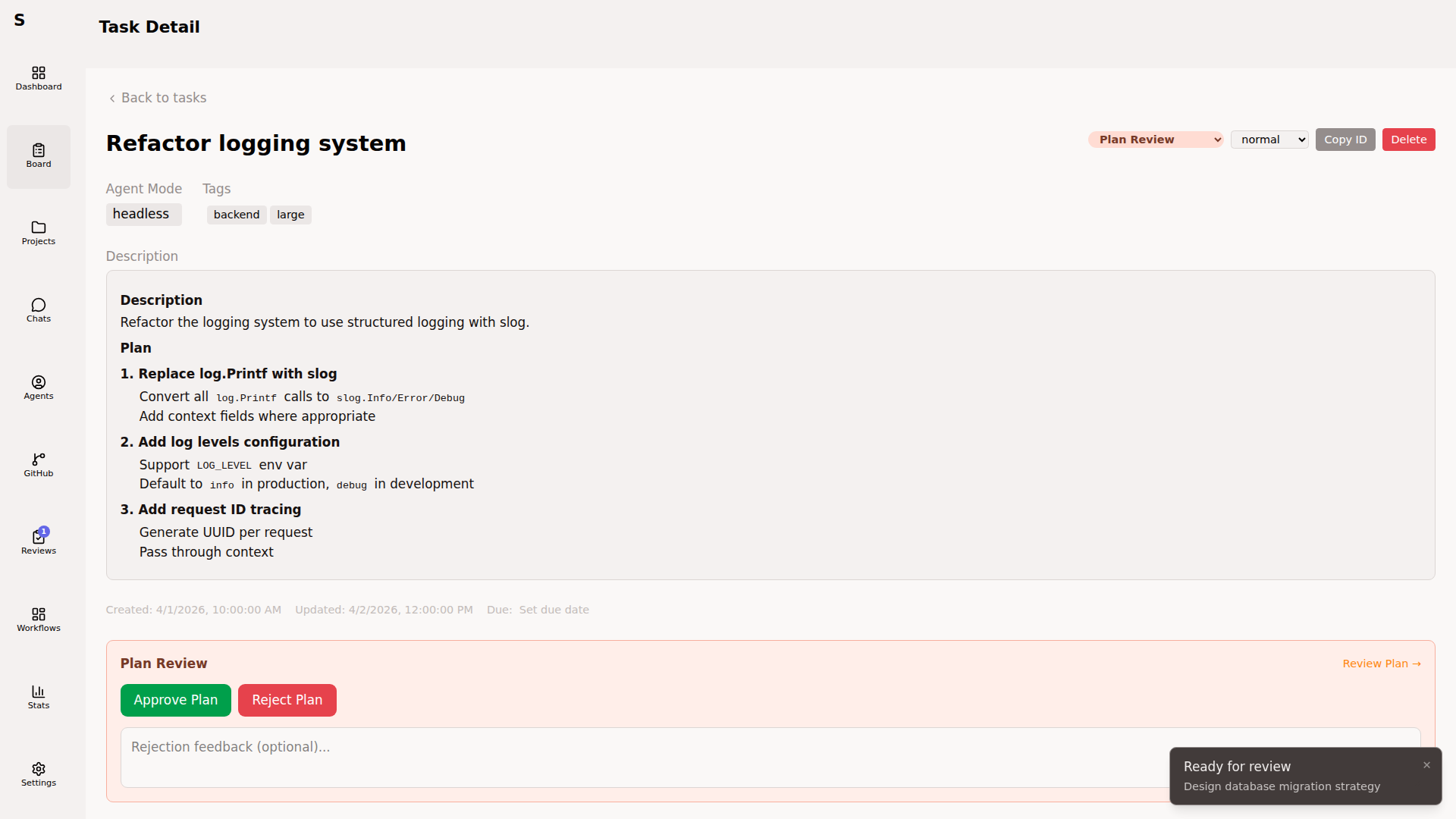
On a plan-review task
Section titled “On a plan-review task”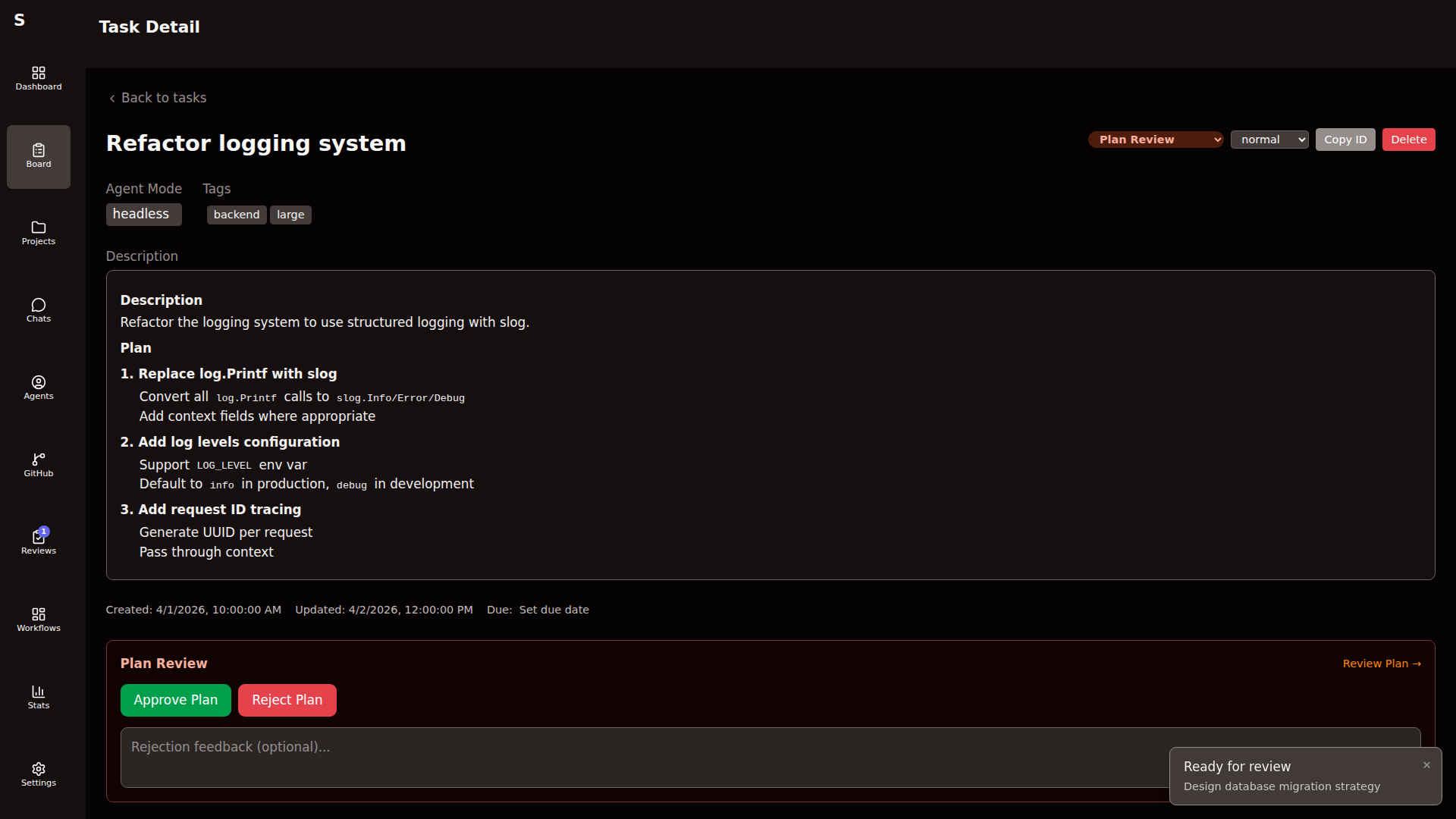
| Key | Action |
|---|---|
A | Approve plan |
R | Reject plan |
C | Focus the feedback textarea |
⌘Enter | Send feedback message |
Agents page
Section titled “Agents page”| Key | Action |
|---|---|
J / K | Next / previous agent |
Enter | Open agent detail |
⌘Enter (in message box) | Send message to agent |
Review view
Section titled “Review view”| Key | Action |
|---|---|
A | Approve the draft review |
R | Request changes |
J / K | Next / previous comment |
C | Focus the comment box |
⌘Enter | Submit review |
Editing tasks
Section titled “Editing tasks”In the task title/body editor:
| Key | Action |
|---|---|
⌘S | Save |
⌘Enter | Save & close |
Esc | Cancel |
Quick Add dialog
Section titled “Quick Add dialog”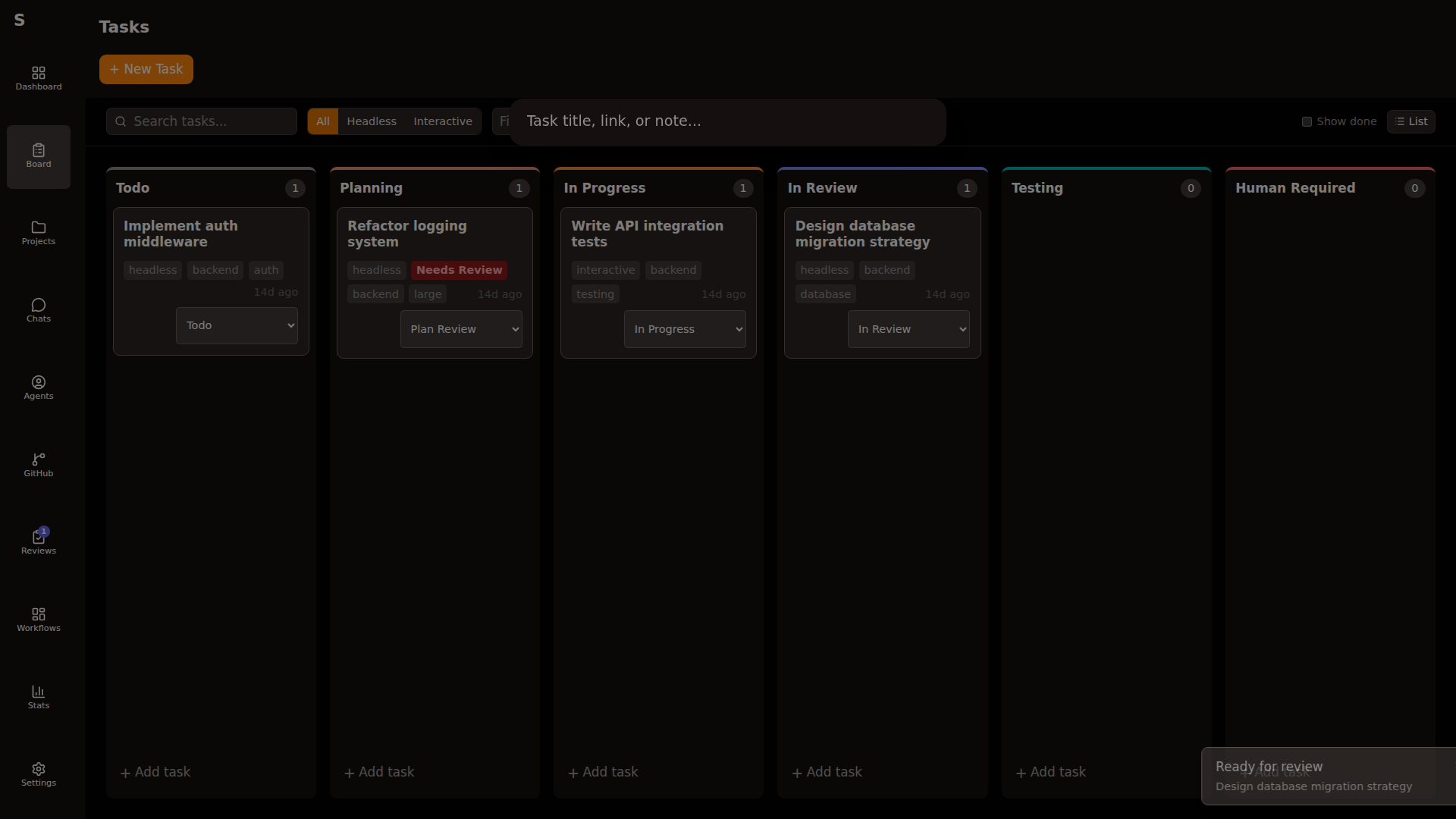
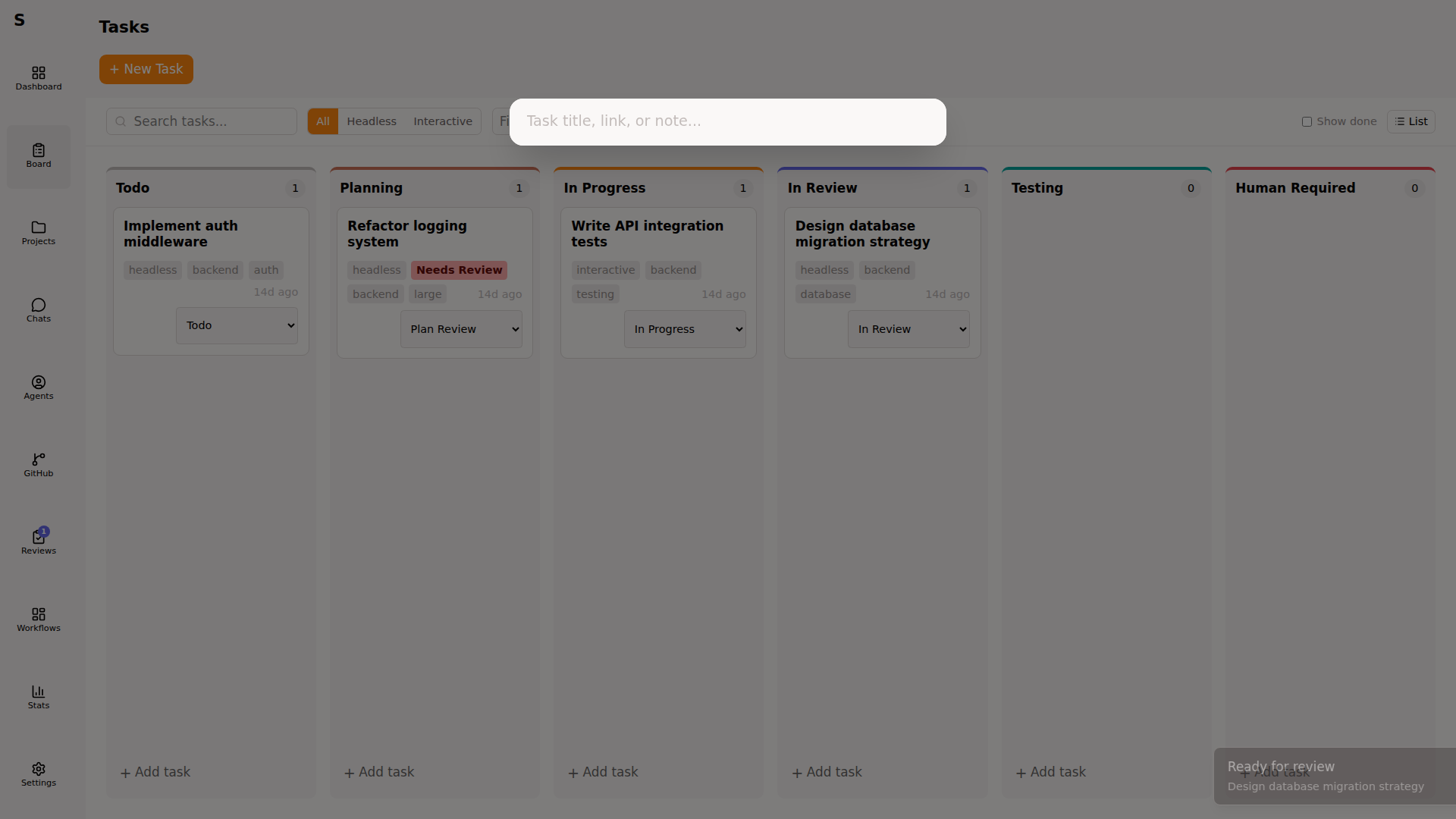
| Key | Action |
|---|---|
Tab | Next field |
⇧Tab | Previous field |
⌘Enter | Create task |
Esc | Cancel |
Command palette results
Section titled “Command palette results”The palette searches three sources: pages, tasks, and projects. Select a result to navigate. Operational actions (start orchestrator, run triage, reload config, etc.) are not exposed through the palette today — use the Settings page or the CLI.
Customizing
Section titled “Customizing”Shortcuts aren’t rebindable yet. Open a GitHub issue if a specific binding conflicts with your system.
Platform notes
Section titled “Platform notes”- macOS:
⌘is Command - Linux:
⌘maps to Super (Meta). Some window managers eatSuper+<key>— rebind at the WM level if so. - Windows: not officially supported. Wails runs, shortcuts mostly work, no guarantees.